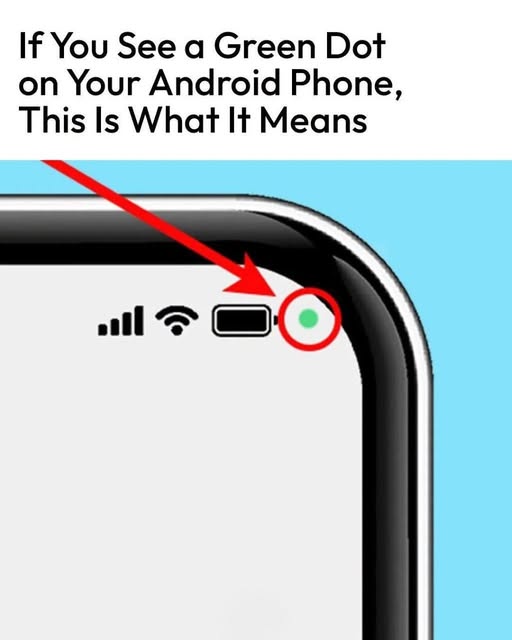
Seeing a green dot in the upper-right corner of your Android phone? Learn what it means, why it appears, which apps can trigger it, and how to check your privacy settings.
What Does the Green Dot in the Upper-Right Corner of Your Android Mean?
If you’ve recently noticed a small green dot in the upper-right corner of your Android phone, you might wonder whether something is wrong or whether an app is secretly using your phone’s camera or microphone.
In most cases, there’s no reason to panic. The green indicator is an important privacy feature designed to let you know when an app is accessing certain sensitive hardware.
What Is the Green Dot?
On many modern Android devices, a green indicator appears when an app is using the camera or microphone.
For example, you might see it when:
- Taking a photo or recording video
- Making a video call
- Recording audio
- Using a voice assistant
- Using an app that requires microphone or camera access
The exact appearance and behavior can vary depending on your Android version and phone manufacturer.
Why Does Android Show It?
The indicator is designed to give you more transparency and control over your privacy.
Instead of an app accessing the microphone or camera without you knowing, Android can provide a visual indication that one of these permissions is currently being used.
This is particularly useful if you don’t remember giving an app permission or if the indicator appears unexpectedly.
How to Find Out Which App Is Using It
If you see the green dot and aren’t sure why it’s there, try these steps:
- Swipe down from the top of your screen to open the notification or Quick Settings panel.
- Look for the privacy or camera/microphone indicator.
- Tap the indicator if your phone provides that option.
- Android may show which app recently accessed the camera or microphone.
The exact steps can differ between Samsung, Google Pixel, Xiaomi, OnePlus, and other Android devices.
What If the Green Dot Appears When You’re Not Using the Camera?
Don’t automatically assume your phone has been hacked.
An app may be using the microphone or camera because of a legitimate feature running in the background. Check which app has access and whether that access makes sense.
If you don’t recognize the app or don’t think it should have access, review its permissions.
Check App Permissions
Go to your phone’s Settings → Privacy → Permission Manager or a similarly named privacy section.
From there, you can review which apps have permission to use:
- Camera
- Microphone
- Location
- Other sensitive information
You can remove permissions that an app doesn’t genuinely need.
Can You Turn Off the Green Dot?
The indicator is part of Android’s privacy protections, and the available controls vary by device and Android version. Rather than trying to disable the warning, it’s generally better to use it as a quick way to monitor camera and microphone access.
If the indicator repeatedly appears unexpectedly, reviewing your app permissions and recently used apps is a good place to start.
Final Thoughts
That little green dot in the corner of your Android phone is usually a privacy notification, not a warning that your phone is infected.
It generally indicates that an app is accessing your camera or microphone. If you don’t recognize the activity, check your privacy controls and app permissions to find out what’s responsible.
Keeping your apps updated and regularly reviewing permissions can also help you maintain better control over your phone’s privacy.